The Service Principal Name (Delegation) configuration has been set incorrectly – Microsoft Dynamics NAV 2017

The Service Principal Name (Delegation) configuration has been set incorrectly using Microsoft Dynamics NAV 2017

I’ve recently been working on a Microsoft Dynamics NAV 2017 installation, to which I was setting up the web client which hadn’t been used before. Now I’ve done many of these setups and they all worked fine, but this one..

Well I got the following error:

Error accessing Website Microsoft Dynamics NAV 2017 Web Client
Raw Url: /live/WebClient/SignIn.aspx?ReturnUrl=%2flive%2fWebClient%2f
Url: https://localhost/live/WebClient/SignIn.aspx?ReturnUrl=%2flive%2fWebClient%2f
Type: Microsoft.Dynamics.Nav.Types.NavSecurityNegotiationException
Message: The Service Principal Name (Delegation) configuration has been set incorrectly. Server connect URL: “net.tcp://localhost:7046/live/Service”. SPN Identity: “DynamicsNAV/localhost:7046”

There was plenty more in the event log, but not of use here. At first I thought it was an SPN issue, but turns out to just need a small change on IIS.

To fix this, open IIS, then expand the server. Now go into Application Pools.
Open Advanced Settings on the Microsoft Dynamics NAV 2017 Web Client entry, then scroll down and find Load User Profile.

Change this to False.

Restart IIS, now it should work.

Enjoy.
Starting the Job Queue on a Business Central Docker container

How to enable the Task Scheduler on a Business Central Docker container to use the Job Queue

By default the Task Scheduler for Business Central is not enabled, so if you add anything to the Job queue in your docker image it just sits there, doing nothing!

To enable it we need to use the following command

Invoke-ScriptInNavContainer

For instance, if you container name is called BCDemo, then you would run the following command

Invoke-ScriptInNavContainer -containername BCDemo -scriptblock {
    Set-NavServerConfiguration -ServerInstance BC -KeyName EnableTaskScheduler -KeyValue true
    Set-NavServerInstance -ServerInstance BC -restart
}

Essentially, change the BCDemo in the above command to match your container name. This script will then change the setting and restart your instance for you.

Task Scheduler will now be running, and the Job queue will actually do something for you now.

Enjoy.

Enabling TCP and Named Pipe connections (Accessing via IP address)

How to access SQL server direct using an IP address

An out of the box SQL installation will be default not allow you to connect to it via an IP address, an issue I recently came across while trying to connect to my local development SQL instance via a local docker container.

To enable access via an IP address, do the following.

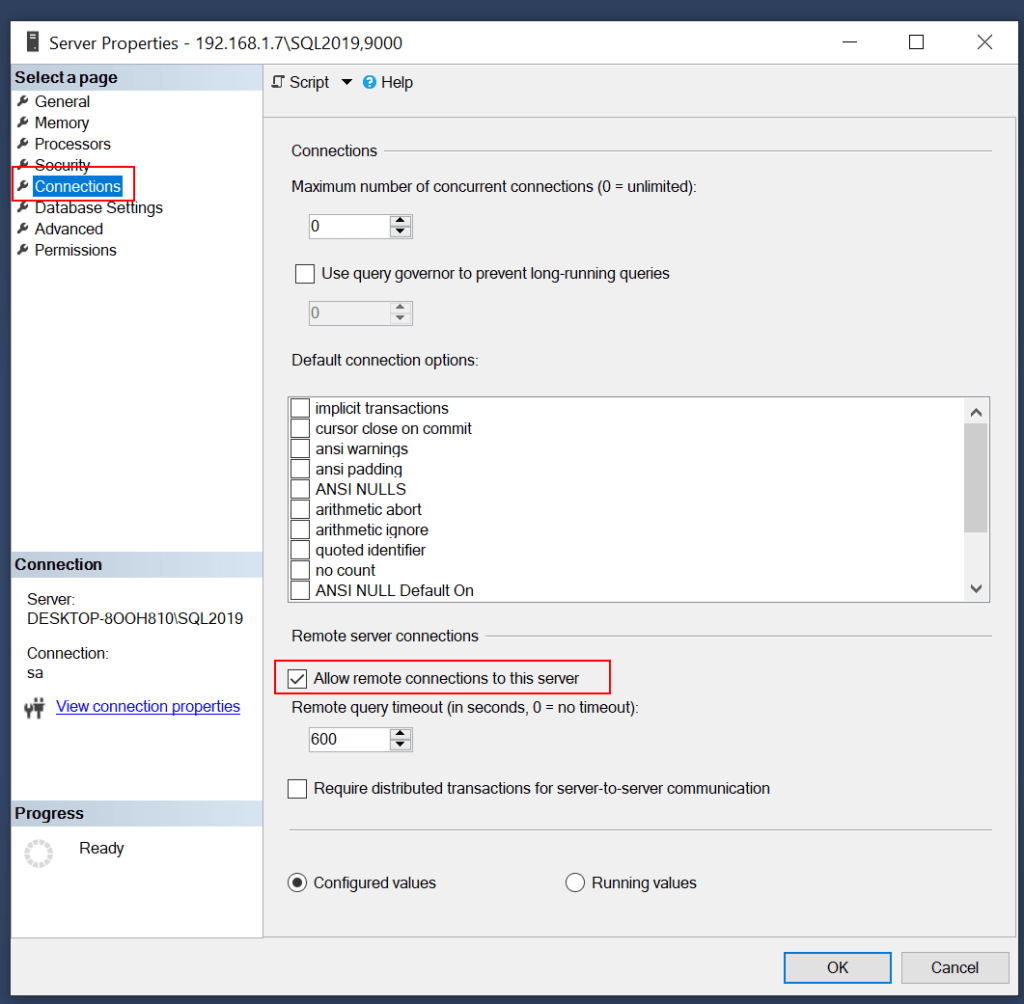
Open SQL Management studio, right click on the server and select properties, then select the connections page.

Now, make sure the Allow remote connections to this server is enabled.

Next, from the run command (Windows key + R), type in mmc, and click Run.

Now, select File -> Add/Remove snap-in, and select SQL Server Configuration Manager.

Expand the Configuration Manager and go to the SQL Server network Configuration\Protocols for SQL2019. Enable both Named Pipes and TCP/IP.

Finally right click on the TCP/IP option and select properties. Then select the IP Addresses tab. Scroll down to the IPAll section and set the port you want, for mine I am using port 9000.

Restart SQL.

Now, you should be able to connect using the IP Address and port.
Using the format [IPAddress]\[Instance],[Port]

In my case, my server would be 192.168.1.7\SQL2019,9000
This is because my computers IP is currently 192.168.1.7, my SQL instance name is SQL2019 and the port I set was 9000. If you have left the instance name as the default you could of just used 192.168.1.7,9000 and it would work.

Enjoy.