Quickly create docker container for Dynamics 365 Business Central

If you work with Dynamics 365 Business Central as a developer then you more than likely know about the excellent BContainerHelper used to download artifacts and create containers.

Wanting a quick way to utilize this, I created my own module than leveraged this – well today it got an overdue update.

Mine can be found here, installing it is a mere command away

Install-Module -Name bc365-create-container

Using it, simple, in its simplest form, the following will get you going

New-BC365Container -ContainerName *name* -Auth NavUserPassword

Simply specify your container name, then follow through the prompts to select type (OnPrem/Sandbox), language version etc and it will do the work for you.

In the recent update however, I’ve added commands to get the preview and the insider builds (if you’re a Partner like us, and have access to them).

For the preview, just add -Preview $true, so

New-BC365Container -ContainerName *name* -Auth NavUserPassword -Preview $true

For insider builds, it would be

New-BC365Container -ContainerName *name* -Auth NavUserPassword -Insider $true

Simple as that. As a final note, when my containers have been created I always like to run the following to make sure the containers don’t auto start with windows each time

docker update *name* --restart=no
The Service Principal Name (Delegation) configuration has been set incorrectly – Microsoft Dynamics NAV 2017

The Service Principal Name (Delegation) configuration has been set incorrectly using Microsoft Dynamics NAV 2017

I’ve recently been working on a Microsoft Dynamics NAV 2017 installation, to which I was setting up the web client which hadn’t been used before. Now I’ve done many of these setups and they all worked fine, but this one..

Well I got the following error:

Error accessing Website Microsoft Dynamics NAV 2017 Web Client
Raw Url: /live/WebClient/SignIn.aspx?ReturnUrl=%2flive%2fWebClient%2f
Url: https://localhost/live/WebClient/SignIn.aspx?ReturnUrl=%2flive%2fWebClient%2f
Type: Microsoft.Dynamics.Nav.Types.NavSecurityNegotiationException
Message: The Service Principal Name (Delegation) configuration has been set incorrectly. Server connect URL: “net.tcp://localhost:7046/live/Service”. SPN Identity: “DynamicsNAV/localhost:7046”

There was plenty more in the event log, but not of use here. At first I thought it was an SPN issue, but turns out to just need a small change on IIS.

To fix this, open IIS, then expand the server. Now go into Application Pools.
Open Advanced Settings on the Microsoft Dynamics NAV 2017 Web Client entry, then scroll down and find Load User Profile.

Change this to False.

Restart IIS, now it should work.

Enjoy.

Powershell module for creating Microsoft Dynamics 365 Business Central docker containers using artifacts

Using a powershell module to easily download a BC365 artifact and create a container

Microsoft Dynamics 365 Business Central, formally known as Dynamics NAV, has provided us partners with a new one way of developing the product.

Previously we would use the developer tool ‘Object designer’ to delve into the product and change the way it works or add complete new functionality for our customers. Now, we are presented with the latest method, Extensions.

Now it’s fair to say they have been around for a while now, initially the v1 extensions… yes moving on quickly to what we have now.

I’m a big fan I must say, initial hesitation aside and no doubt future challenges we’ll face, but seeing an out of the box solution being lit up with new features without touching the base code, might impressive.

Anyway, to facilitate this development the old method of creating a dev environment is dead in the water. In comes Docker, and more recently artifacts.

I am not going to delve too much into it to be honest, there are plenty of resources available, primarily you need the bccontainerhelper, but putting it all together is a little time consuming, and the last thing we want is our team members to have to spend unnecessary time spinning up a new container.

So the answer, my new PowerShell module (and my first!), it can be found on the gallery here

Before you get going you need the BcContainerHelper from the powershell gallery (which also has everything you need too – for more see here). Anwyay to install this type

Install-Module -Name BcContainerHelper

To install, from a PowerShell prompt type:

Install-module bc365-create-container

Once imported, you can simply run it by typing:

New-bc365container

This is its simplest form, and will prompt you for a container name., it will default to Windows authentication, no ssl and CSide installation.

The current parameters available are:

ContainerName: specifies the container name
Auth: Authentication type, either Windows or NavUserPassword (defaults to windows if not specified
SSL: Obvious I think! Defaults to false.
CSide: Install the CSide client etc. Defaults to false.

So for example, to run as NavUserPassword, with SSL and with CSide type:

New-BC365Container -ContainerName yourname -Auth NavUserPassword -SSL $true -CSide $true

I will be added new parameters over the next few weeks as well as other improvements, but not will get you there quicker I think.

The source is also available on GitHub

All future parameter updates etc will be posted on GitHub.

Microsoft Dynamics 365 Business Central – SOAP Codeunits not exposing functions

I’ve recently been working on a client upgrade from NAV 2009 to Business Central. This particular customer has a B2B site that talks back to NAV (which will turn into Business Central) via SOAP services.

I tried to connect the DEV site into the DEV instance of Business Central, however when trying to log in I was getting strange messages saying functions didn’t exist etc. I know they do… so what’s going on.

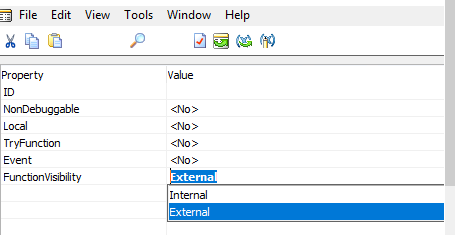
Ah Microsoft… So apparently they have decided as of around the April 19 release (I think this also affects Cumulative updates too) that it will only expose functions if the FunctionVisibility property is set to External, see below. Makes sense from a security point of view I suppose.

Untitled

So there we have it, now I have a load of functions in different Codeunits to go and change!

Dynamics NAV 2018 and VS Code – Debugging Error, sorry that didn’t work

So you have downloaded and installed the shiny new version of Microsoft Dynamics NAV, fired up VS Code to create your first extension, run it, but then when the WebClient opens you are greeted with the blue screen and a ‘Sorry that didn’t work’ message…

Fortunately there is a quick fix, navigate to the C:\Program Files\Microsoft Dynamics NAV\110\Service folder, and edit the Microsoft.Dynamics.Nav.Server.exe.config file (you need to edit it with Administrator rights), find and remove the following line;

<NetFx40_LegacySecurityPolicy enabled=”true”/>

Restart the NST and viola 🙂