Use Python and Django to control your GPIO pins, hosted on a Raspberry Pi using Nginx and Gunicorn – Part 2 – Setting up the Raspberry Pi

In Part 2 we go through the initial setup of the Pi and its OS

Project overview

In this series of posts, I will go through all the steps required to use a Raspberry Pi along with Python and Django to control the GPIO pins for an automation project.

Part 1 – The introduction, what I hope to achieve and what you will need.

Part 2 (this one) – I will start right at the beginning with getting Raspbian installed and running, then moving onto the basic configuration of the Raspberry Pi.

Part 3 – Then we’ll move onto making sure we have Python and the required modules installed and do some basic tests to make sure we are happy Python is running and we can use the GPIO pins.

Part 4 – Now it will get interesting, we’ll install the Django module for Python, and then create our project and our app (it will make sense later), we’ll also have a quick look at our database options. Once we have this, we’ll create our backend objects so we can easily add/remove our GPIO pins as we please, all managed through the admin side of Django!

Part 5 – So we have our backend, now we’ll create our front end (warning – I’m not a front end master – design/graphics will be at a minimum!). This will allow us to turn our pins on and off – we’ll test it locally.

Part 6 – So we have everything sorted, all done, we can navigate to it on our internal network… well yes, but we shouldn’t be using the development server to run it full time. In this part we’ll look at using Gunicorn as our webserver.#

Part 7 – Great, we have Gunicorn serving our site, but we still shouldn’t expose this to the word, in step Nginx, this will sit between the outside and our Gunicorn server.

So all in all quite a few steps, this is all based on what I have learnt while trying to get everything working.  I hope you enjoy reading.

My disclaimer!

Before I go any further I should state that I am by no means a Linux, Python or Django expert, nor am I used to Nginx and Gunicorn for serving it up. There will no doubt be errors along the way, along with ways of doing things that aren’t best practice. This is very much intended as an internal network project so security will be minimal. I will also point out that my project will be switching mains power, you do this as your own risk, if you are not comfortable wiring mains just don’t do it, get an electrician.

Getting the Raspberry Pi ready

So this is where our fun really starts. First we need to download Raspbain, extract it onto the Micro SD Card and do a little configuration. I want it headless, which basically means for this series of posts I won’t need to connect and keyboard, mouse or monitor – everything will be done via SSH.

So firstly to download Raspbian, head over to https://www.raspberrypi.org/downloads/, we need to get the appropiate imager for the OS we’ll be using to do the setup, in my case I am going to download the Imager for macOS.

Once downloaded open it, firstly we choose the OS, which you choose is ultimately your choice, for this we are going to choose Raspbain (Other), then the Lite option – we don’t need the Desktop for this, plus its the smallest download size. Now select your SD Card, then click Write. Sit back while it does the work for you 🙂
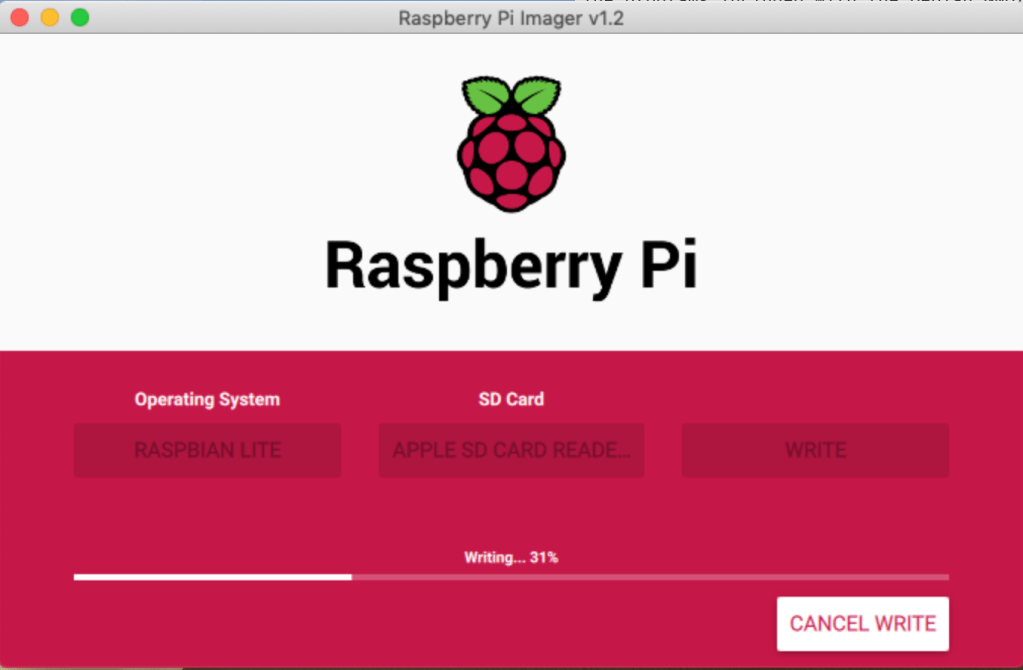
Ok, so once that has done, reinsert the SD Card and it should mount/show a drive called boot. This is what we want.

So we need to setup the following before we even boot.

  1. SSH Connectivity
  2. Wi-Fi Connection
  3. Static IP address
  4. Pi Password

By default, since 2016 I think, SSH has been disabled by default on Raspbian. As we need this enabled to connect, that will be our first change.

With your SD card plugged into your computed, navigate to the boot partition or volume. On Windows this should show up as a drive, I’m using a Mac, so I need to go to /Volumes/boot.

In here, to enable SSH at boot, we simply need to create a file called SSH, that’s it! So on my Mac, in the boot directory I simply run:

touch SSH

That’s SSH enabled.

Next, Wi-Fi. Now I’m assuming you are using Wi-Fi, if you are using a cabled connection you can skip this part.

Again, this has been made easy, we need to create another file in the boot folder, this time called wpa_supplicant.conf.

Unlike last time we now need to edit this file and put the following content in it, replacing the placeholders with your Wi-Fi details:

network={
 ssid="<Name of your wireless LAN>"
 psk="<Password for your wireless LAN>"
}

Okay, so thats our Wi-Fi setup, now I like to use a static IP address on my network.

Now there are 2 ways you can do this, if you have linux/mac it is possible to mount and see the entire Raspbain system, edit the file you need and it’s done. However, its a little more involved and beyond what I want to cover here, so we are going to do it the easy way.

Remove the SD card, place it in your Raspberry Pi – make sure the monitor and keyboard are plugged in, turn it on 🙂

Once booted, enter the default user pi and the password raspberry. You should now be logged in.

From the prompt type:

sudo nano /etc/dhcpd.conf

Go to the bottom, for a Wi-Fi connection type:

wlan0 interface 
static ip_address = 192.168.1.100 / 24 
static routers = 192.168.1.1 
static domain_name_servers = 192.168.1.1

If you are using a cabled connection, type:

eth0 
static ip_address = 192.168.1.100 / 24 
static routers = 192.168.1.1 
static domain_name_servers = 192.168.1.1

You’ll notice the only difference if the first line, this defines the cable connection or Wi-Fi connection. Adjust the IP address and subnet to suit what your network needs.

Reboot the Raspberry Pi… Once restarted and logged in type:

ifconfig

This will show your current IP address, it should match what you had in your above file now.

Excellent, good progress. Lastly for this part we need to change our user password, to do this simply type the below and follow the prompts:

passwd

Okay, you’ve now changed your default password for the pi user. Shutdown the Raspberry Pi. You can now disconnect the monitor and keyboard if you want, we can do the rest remotely – or you can leave it connected and do it on the Raspberry Pi if you prefer.

Well that’s if for part 2, in the next part things start to get interesting..

Bye.
Use Python and Django to control your GPIO pins, hosted on a Raspberry Pi using Nginx and Gunicorn – Part 1

A walk through on hosting your own Python/Django site on a Raspberry Pi to control the GPIO Pins

Project overview

In this series of posts, I will go through all the steps required to use a Raspberry Pi along with Python and Django to control the GPIO pins for an automation project.

They will be broken down into the following posts (this one being part 1, and they are subject to change :))

Part 2 – I will start right at the beginning with getting Raspbian installed and running, then moving onto the basic configuration of the Raspberry Pi.

Part 3 – Then we’ll move onto making sure we have Python and the required modules installed and do some basic tests to make sure we are happy Python is running and we can use the GPIO pins.

Part 4 – Now it will get interesting, we’ll install the Django module for Python, and then create our project and our app (it will make sense later), we’ll also have a quick look at our database options. Once we have this, we’ll create our backend objects so we can easily add/remove our GPIO pins as we please, all managed through the admin side of Django!

Part 5 – So we have our backend, now we’ll create our front end (warning – I’m not a front end master – design/graphics will be at a minimum!). This will allow us to turn our pins on and off – we’ll test it locally.

Part 6 – So we have everything sorted, all done, we can navigate to it on our internal network… well yes, but we shouldn’t be using the development server to run it full time. In this part we’ll look at using Gunicorn as our webserver.#

Part 7 – Great, we have Gunicorn serving our site, but we still shouldn’t expose this to the word, in step Nginx, this will sit between the outside and our Gunicorn server.

So all in all quite a few steps, this is all based on what I have learnt while trying to get everything working.  I hope you enjoy reading.

My disclaimer!

Before I go any further I should state that I am by no means a Linux, Python or Django expert, nor am I used to Nginx and Gunicorn for serving it up. There will no doubt be errors along the way, along with ways of doing things that aren’t best practice. This is very much intended as an internal network project so security will be minimal. I will also point out that my project will be switching mains power, you do this as your own risk, if you are not comfortable wiring mains just don’t do it, get an electrician.

What you will need

  1. Raspberry Pi (I’m using a 4, a 3 should also be fine)
  2. Micro SD card
  3. Power source for the Raspberry Pi
  4. Wi-Fi connection
  5. Monitor and Keyboard
  6. Relay board (technically optional if you are just interested in how it would work, you could just use LEDs to simulate the switching of a relay etc)
  7. Selection of jumper wires, LEDs and resistors for basic circuit testing etc.
  8. Case, if you are actually going to be using it

So for Part 1, that’s it, just a summary of the project, Part 2 should be along next week hopefully.

MacOS, Installing Python & pygame

Saturday 21st March, UK – the coronavirus is in full swing, today is the first day in the UK that Restaurants, Pubs, Cafe’s & leisure facilities etc have to stay closed.

So I’ve decided to install Python3 & pygame on my Mac and see what I can do – now I’m more of a Windows guy, so I thought this would be interesting – turns out is was painful.

So, if you want to install Python with Pygame how would I recommend it? Well I think using HomeBrew is the easiest by far.

To do this first you need to install Xcode and Xcode-select, this is done by running the following command:

xcode-select --install

Now, you can run the following to install HomeBrew:

/usr/bin/ruby -e "$(curl -fsSL https://raw.githubusercontent.com/Homebrew/install/master/install)"

For more information see here.

Now HomeBrew is installed, install Python3 by running:

brew install python3

and Java by running:

brew cask install adoptopenjdk

and finally pygame by running:

pip3 install pygame

Now you should be good to go!

Setting up your own Minecraft server on linux – Bedrock Edition

I’ve recently setup a computer each for both my boys, my eldest – currently 8 at writing, is around the same age I was when I first got into computer (anyone remember loading games and programs from tapes… ahh the sound – good times ;))

Anyway, with the mass of available games, and a lot of inappropriate games too I decided to put Minecraft on, they both like Lego and I thought this would be an ideal start.

So, computer running and Minecraft installed, they both like it. But.. while I don’t want them to play online, I quite like the idea of them being able to interact in the same world. So, why not setup a local minecraft server they can play and be safe in (real world safe, not from creepers!)

Ideally I would of preferred a Raspberry Pi setup, doesn’t take it too much space and with the Pi 4 and 4GB ram should be enough, at the moment there isn’t an ARM version of the Bedrock server, and while I know you can create one – or even get the current one working on a Pi – I wanted something quick.

Using Ubuntu Server

This is the route I am going down, I have re purposed an old slimline desktop pc to use.

First job, get Ubunto, go to; https://ubuntu.com/download/server. I think it makes sense to use the server edition, at the time of writing the 2 versions available are version 18.04.4 LTS and 19.10. I got the 18.04.4 as this was the recommended version for the Minecraft Bedrock server, and as this was the only thing I would be using it for it was okay for me.

I used Rufus to create a bootable USB and off I went installing Linux. Wow how times have changed since my last Linux install (exluding Pi’s here), it was so.. easy. As it was so easy I am not going to go through this step by step. Follow all the prompts. At the networking one I disabled IPv6 and set a static IPv4 address for my network, make the appropriate changes for your setup – a fixed IP is preferable!

So now we have a computer running Ubunto, how easy was that.

Minecraft Bedrock

Now for minecraft, you can download it from https://www.minecraft.net/en-us/download/server/bedrock/, but I pefer to us a script to do it – fortunately someone has already created a nice script for us – James Chambers.

To get it, follow these steps;#

First, log into your Linux terminal, or SSH in.
Now to get the script, run

wget https://raw.githubusercontent.com/TheRemote/RaspberryPiMinecraft/master/SetupMinecraft.sh

We need to alter the permissions, so run

chmod +x SetupMinecraft.sh

and finally, to run the script, type

./SetupMinecraft.sh

Now it will ask you some questions for the setup, the first one being what is the name, think of this as the instance, you can have multiple instances running – remember though, if you have multiple instances make sure you change the ports to different ones. For each instance you will get a new folder within the minecraftbe folder. Follow all the prompts, and at the end you should have a running instance.

Now all I had to do log onto my sons computers and add the server, yay it works.

So.. next, how do I setup a different world?!?
I downloaded a world from the marketplace, just a cheapish one to try, I did this on the Windows 10 version, once downloaded I created the world, this is then saved to the following folder on your Windows PC

C:\Users\yourusername\AppData\Local\Packages\Microsoft.MinecraftUWP_8wekyb3d8bbwe\LocalState\games\com.mojang\minecraftWorlds

In this folder you will see a folder per world, what you can do is copy this folder into the worlds folder within the instance folder of the minecraftbe folders on your Linux server. If you aren’t sure how, you can use WinSCP from windows to transfer the folder – rename the world folder after copying to the name, within the world folder there is a file called levelname.txt, open this file and make a note of the text.

Now, open the server.properties file in the instance folder, find the line:

level-name=Bedrock level

Replace the Bedrock level text to the name from the levelname.txt.
In my case, it says Jungle Template in the txt file, so my new line would read

level-name=Jungle Template

The case is important.

Restart your instance, it should be working with the new World.

Microsoft Dynamics 365 Business Central – SOAP Codeunits not exposing functions

I’ve recently been working on a client upgrade from NAV 2009 to Business Central. This particular customer has a B2B site that talks back to NAV (which will turn into Business Central) via SOAP services.

I tried to connect the DEV site into the DEV instance of Business Central, however when trying to log in I was getting strange messages saying functions didn’t exist etc. I know they do… so what’s going on.

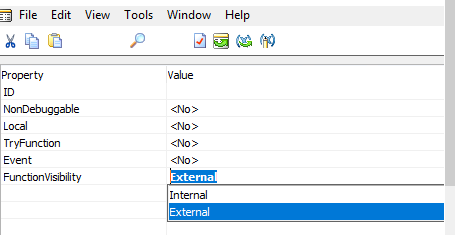
Ah Microsoft… So apparently they have decided as of around the April 19 release (I think this also affects Cumulative updates too) that it will only expose functions if the FunctionVisibility property is set to External, see below. Makes sense from a security point of view I suppose.

Untitled

So there we have it, now I have a load of functions in different Codeunits to go and change!

Python 3 and SSL: CERTIFICATE_VERIFY_FAILED on MacOS

So I have started to spend more time recently using Python, something I haven’t really used much but it does seem to be a powerful language, and as I’m using Raspberry Pi’s more thought I better look at it.

One of my interests is around AI, or Machine Learning, after installing the required modules and trying to download a demo csv file (for the equivalent Hello World test) I got the following error:

SSL: CERTIFICATE_VERIFY_FAILED

Puzzled… after a little research turns out that by default, in the latter Pythons on MacOS, the certs aren’t installed by default, so if you come across this and need them, do the following.

At the terminal type:

cd "/Applications/Python 3.8/"

Note: you may need to change the Python version in live above, in this line I am using 3.8
Followed by:

sudo "./Install Certificates.command"

That should install the required certificates and not give you the error any more.


Raspberry Pi – Forgot your Pi user Password… Oops

So recently I’ve decided to overhaul my home network, one of the requirements for this is I needed a DHCP and DNS server running, as I had already setup a Raspberry Pi last year with Blynk I decided I could use this for my DHCP and DNS too.

Now the Pi itself wasn’t currently running as my Blynk project is on hold until the summer, booted it up, and even though I ‘know’ the password… it seems I don’t..

Arrghh…

Okay, no big issue. Due the the nature of Raspberry Pi’s its quite easy to reset. Shutdown your Pi, remove the memory card and place this into your PC.

On the Boot drive you should see a file called cmdline.txt, open this file (I used VS Code as notepad sometimes creates side effects). At the end of the line add a space followed by;

init=/bin/sh

Save the file, remove the card and place it back into the Pi. Boot the Pi. Once at the prompt (you are now in single user mode), type:

su

Now at this point you could just type:

passwd pi

to reset the password, but sometimes you need to mount first, so I always do it in this order (including the forward slash, then enter):

mount -rw -o remount / 

Then type:

passwd pi

Follow the prompts.

Shutdown the Pi, take the memory card out and put it back into the PC, edit the cmdline.txt file again and remove the text you put in before, save, and put it back into the Raspberry Pi and boot.

Now you should be able to in as Pi with your new password

Yay.

(Of course this security hack could be done by anyone who has physical access to your Pi…)


Outlook, not prompting for password issue – Something went wrong

So.. after about an hour of working this morning I noticed my emails had stopped flowing through into Outlook, I knew I had emails as my phone was still pinging off.

After a little investigation I noticed in the bottom right corner of Outlook it said Needs Password, cool, should be easy…..

Oh no, it bloody wasn’t, no matter what I did I couldn’t get it to prompt – in anger I removed my profile and attempted to set it back up again.

FAIL… After the initial enter your email box, it sat there for a few seconds then all I get is; Something went wrong. Every single time..

I checked on another computer to see if it was an account based or machine based issue. Machine issue it was, worked fine on another computer. It was at this point I realised it had stopped asking me for my account password.

Many minutes later… this fixed it for me;

Run Regedit, navigate to;

HKEY_CURRENT_USER\Software\Microsoft\Office\16.0\Common\Identity

Create new DWORD value named EnableADAL, set its value to 0 (zero)

Also create new DWORD (in the same place), named DisableADALatopWAMOverride and set this value to 1.

Restart Outlook, yay a password box, and away we go.

Thanks Microsoft for wasting some of my life!

Hopefully this will help someone else if (or when :)) they get this issue

Happy new year!

Happy new year everyone!

One of the (many) things I’ve decided to try and do this year is post a bit more, it’s only when I have logged in I noticed I did no posts at all last year, here’s hoping I manage a bit more!

Along with more posting, my other aims are to try and get some more of my Arduino/Raspberry Pi projects actually finished!

Have a good new year everyone!

Dynamics NAV 2018 and VS Code – Debugging Error, sorry that didn’t work

So you have downloaded and installed the shiny new version of Microsoft Dynamics NAV, fired up VS Code to create your first extension, run it, but then when the WebClient opens you are greeted with the blue screen and a ‘Sorry that didn’t work’ message…

Fortunately there is a quick fix, navigate to the C:\Program Files\Microsoft Dynamics NAV\110\Service folder, and edit the Microsoft.Dynamics.Nav.Server.exe.config file (you need to edit it with Administrator rights), find and remove the following line;

<NetFx40_LegacySecurityPolicy enabled=”true”/>

Restart the NST and viola 🙂