Quickly create docker container for Dynamics 365 Business Central

If you work with Dynamics 365 Business Central as a developer then you more than likely know about the excellent BContainerHelper used to download artifacts and create containers.

Wanting a quick way to utilize this, I created my own module than leveraged this – well today it got an overdue update.

Mine can be found here, installing it is a mere command away

Install-Module -Name bc365-create-container

Using it, simple, in its simplest form, the following will get you going

New-BC365Container -ContainerName *name* -Auth NavUserPassword

Simply specify your container name, then follow through the prompts to select type (OnPrem/Sandbox), language version etc and it will do the work for you.

In the recent update however, I’ve added commands to get the preview and the insider builds (if you’re a Partner like us, and have access to them).

For the preview, just add -Preview $true, so

New-BC365Container -ContainerName *name* -Auth NavUserPassword -Preview $true

For insider builds, it would be

New-BC365Container -ContainerName *name* -Auth NavUserPassword -Insider $true

Simple as that. As a final note, when my containers have been created I always like to run the following to make sure the containers don’t auto start with windows each time

docker update *name* --restart=no

Powershell module for creating Microsoft Dynamics 365 Business Central docker containers using artifacts – New version

Getting the public preview Business Central Docker artifacts for you local containers

I’ve just released a new version of my powershell module that I use to create my local docker instance of Business Central.

Nothing too fancy, but there is now an extra parameter you can pass to make it look at the Public Preview releases..

The new parameter is -Preview. So to use it you would type something like:

New-BC365Container -ContainerName yourname -Auth NavUserPassword -SSL $true -Preview $true

That’s it, the new version is 0.0.7, (apt timing with the version number;)).

Be sure to get it by using the Install-Module command:

Install-Module bc365-create-container

ASPNET Core – asp-append-version for remote images

Solving the asp-append-version problem with remote files in aspnet core with a custom TagHelper

I recently came across an issue where the site wasn’t refreshing images that the customer has updated even though they had changed them. Obviously browser caching was the original thought – which it was.

Some background, the is hosted on Azure and provided a back end portal for customers (B2B) to be able to order products via the website, these in turn are then pushed to the customers Microsoft Dynamics NAV instance (also known now as Microsoft Dynamics 365 Business Central). This has been developed my my Consultancy company in the UK – TAIG Solutions

In this instance the product images are actually stored seperately to the Azure site – they are hosted on the customers own on-prem server this makes it easier for the designers to update the images, they can just overwrite the image with a new one…. and here lies the problem…

One of the tools we have available is the asp-append-version tag which, when applied to the img tag basically adds a hash value of the file onto the end of the url, so for example

<img src="yourdomain.com/image.png?v=1234567890" />

The ?v=1234567890 being key, normally each time the file is served a hash is generated based on the file, so if the image changes, so does the hash and the browser will force a refresh of the image and not use the cached image.

However, this doesn’t work with files that are stored remotely, as we found out. There are a couple of solutions to this problem, but the easier we chose was to use the same versioning, but generate our own hash value – but not based on the file, we’d use the date (in this case they change the images so often we decided to do it on a day-by-day basis, but you could do something not as regular).

So how do we do this, we create our own TagHelper of course.

In your project, create a new class with the following code:

using Microsoft.AspNetCore.Razor.TagHelpers;
using System;

namespace TAIG.Solutions.WebPortal.TagHelpers
{
    [HtmlTargetElement("static-image-file", TagStructure = TagStructure.WithoutEndTag)]
    public class StaticImageTagHelper : TagHelper
    {
        // Can be passed via <static-image-file image-src="..." />. 
        // PascalCase gets translated into kebab-case.
        public string ImageSrc { get; set; }

        public override void Process(TagHelperContext context, TagHelperOutput output)
        {
            output.TagName = "img";    // Replaces <static-image-file> with <a> tag

            // create a version
            string version = DateTime.Now.ToString("yyyyMMdd"); // caching for a day - could use a setting in future?

            // generate url
            string url = $"{ImageSrc}?v={version}";

            output.Attributes.SetAttribute("src", url);
        }
    }
}

Now, in your _ViewImports.cshtml file we need to add the following

@addTagHelper TAIG.Solutions.WebPortal.TagHelpers.StaticImageTagHelper, TAIG.Solutions.WebPortal

Obviously if you changes the class name you need to adjust it, and make sure you change the namespace to the one you are using.

The result now, is we can now use our own tag instead of image, so instead of

<img src="yourdomain.com/image.png?v=1234567890" />

We can now use

<static-image-file image-src="yourdomain.com/image.png" />

Now code code will add a ?v= along with a date value which changes each day.

Problem solved. Yes, if they change an image during the day then, if you have viewed the page already you would have to wait until the following day for it to change, but that is good enough for us.
Starting the Job Queue on a Business Central Docker container

How to enable the Task Scheduler on a Business Central Docker container to use the Job Queue

By default the Task Scheduler for Business Central is not enabled, so if you add anything to the Job queue in your docker image it just sits there, doing nothing!

To enable it we need to use the following command

Invoke-ScriptInNavContainer

For instance, if you container name is called BCDemo, then you would run the following command

Invoke-ScriptInNavContainer -containername BCDemo -scriptblock {
    Set-NavServerConfiguration -ServerInstance BC -KeyName EnableTaskScheduler -KeyValue true
    Set-NavServerInstance -ServerInstance BC -restart
}

Essentially, change the BCDemo in the above command to match your container name. This script will then change the setting and restart your instance for you.

Task Scheduler will now be running, and the Job queue will actually do something for you now.

Enjoy.

Powershell module for creating Microsoft Dynamics 365 Business Central docker containers using artifacts

Using a powershell module to easily download a BC365 artifact and create a container

Microsoft Dynamics 365 Business Central, formally known as Dynamics NAV, has provided us partners with a new one way of developing the product.

Previously we would use the developer tool ‘Object designer’ to delve into the product and change the way it works or add complete new functionality for our customers. Now, we are presented with the latest method, Extensions.

Now it’s fair to say they have been around for a while now, initially the v1 extensions… yes moving on quickly to what we have now.

I’m a big fan I must say, initial hesitation aside and no doubt future challenges we’ll face, but seeing an out of the box solution being lit up with new features without touching the base code, might impressive.

Anyway, to facilitate this development the old method of creating a dev environment is dead in the water. In comes Docker, and more recently artifacts.

I am not going to delve too much into it to be honest, there are plenty of resources available, primarily you need the bccontainerhelper, but putting it all together is a little time consuming, and the last thing we want is our team members to have to spend unnecessary time spinning up a new container.

So the answer, my new PowerShell module (and my first!), it can be found on the gallery here

Before you get going you need the BcContainerHelper from the powershell gallery (which also has everything you need too – for more see here). Anwyay to install this type

Install-Module -Name BcContainerHelper

To install, from a PowerShell prompt type:

Install-module bc365-create-container

Once imported, you can simply run it by typing:

New-bc365container

This is its simplest form, and will prompt you for a container name., it will default to Windows authentication, no ssl and CSide installation.

The current parameters available are:

ContainerName: specifies the container name
Auth: Authentication type, either Windows or NavUserPassword (defaults to windows if not specified
SSL: Obvious I think! Defaults to false.
CSide: Install the CSide client etc. Defaults to false.

So for example, to run as NavUserPassword, with SSL and with CSide type:

New-BC365Container -ContainerName yourname -Auth NavUserPassword -SSL $true -CSide $true

I will be added new parameters over the next few weeks as well as other improvements, but not will get you there quicker I think.

The source is also available on GitHub

All future parameter updates etc will be posted on GitHub.

Microsoft Dynamics 365 Business Central – SOAP Codeunits not exposing functions

I’ve recently been working on a client upgrade from NAV 2009 to Business Central. This particular customer has a B2B site that talks back to NAV (which will turn into Business Central) via SOAP services.

I tried to connect the DEV site into the DEV instance of Business Central, however when trying to log in I was getting strange messages saying functions didn’t exist etc. I know they do… so what’s going on.

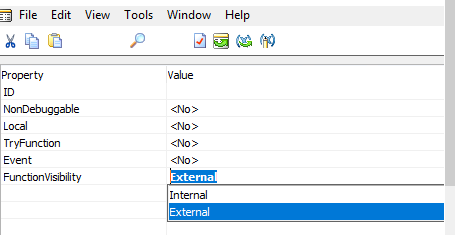
Ah Microsoft… So apparently they have decided as of around the April 19 release (I think this also affects Cumulative updates too) that it will only expose functions if the FunctionVisibility property is set to External, see below. Makes sense from a security point of view I suppose.

Untitled

So there we have it, now I have a load of functions in different Codeunits to go and change!